Lessons, quizzes and progress
How to find your course again and pick up where you stopped, how lessons and module quizzes work, what saves your progress, and what to check if your progress looks lost.
Find your course again
Every course you enrol in is kept on your profile. You do not need to search for it in the catalogue again. Sign in first: your courses and your progress belong to your account, so they only show when you are signed in.
- Step 1: Sign in on the Sign in page, with the same account you enrolled with.
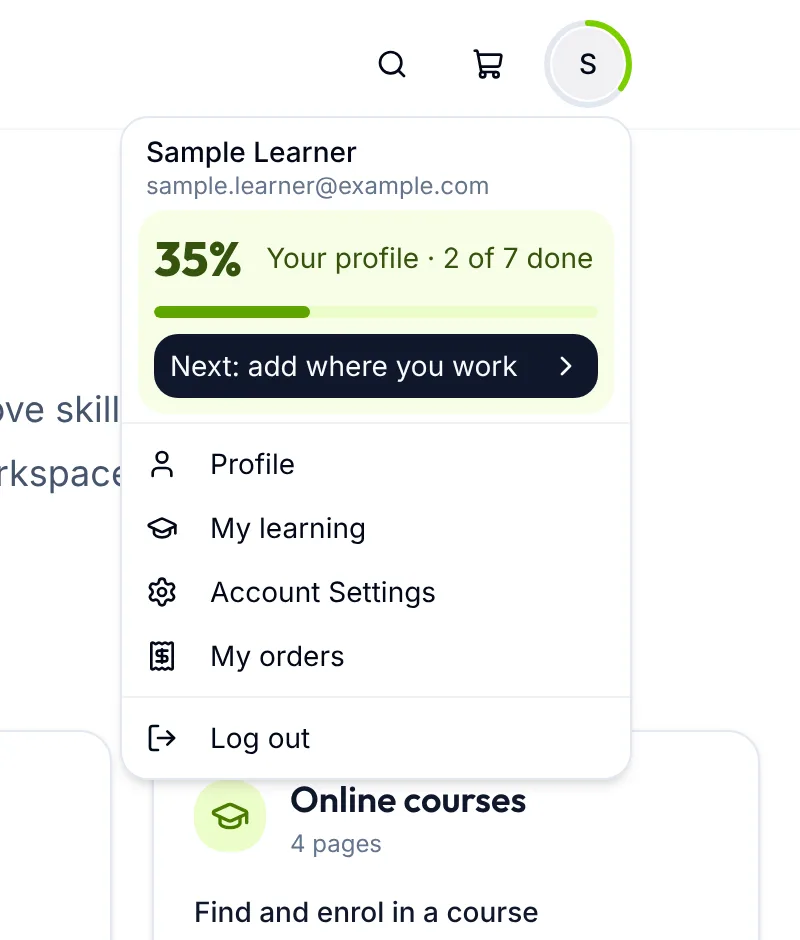
- Step 2: Press your picture or initial at the top right of any page. The menu shows the name and email address you are signed in with.
- Step 3: Choose My learning. Your profile opens on the Learning tab.
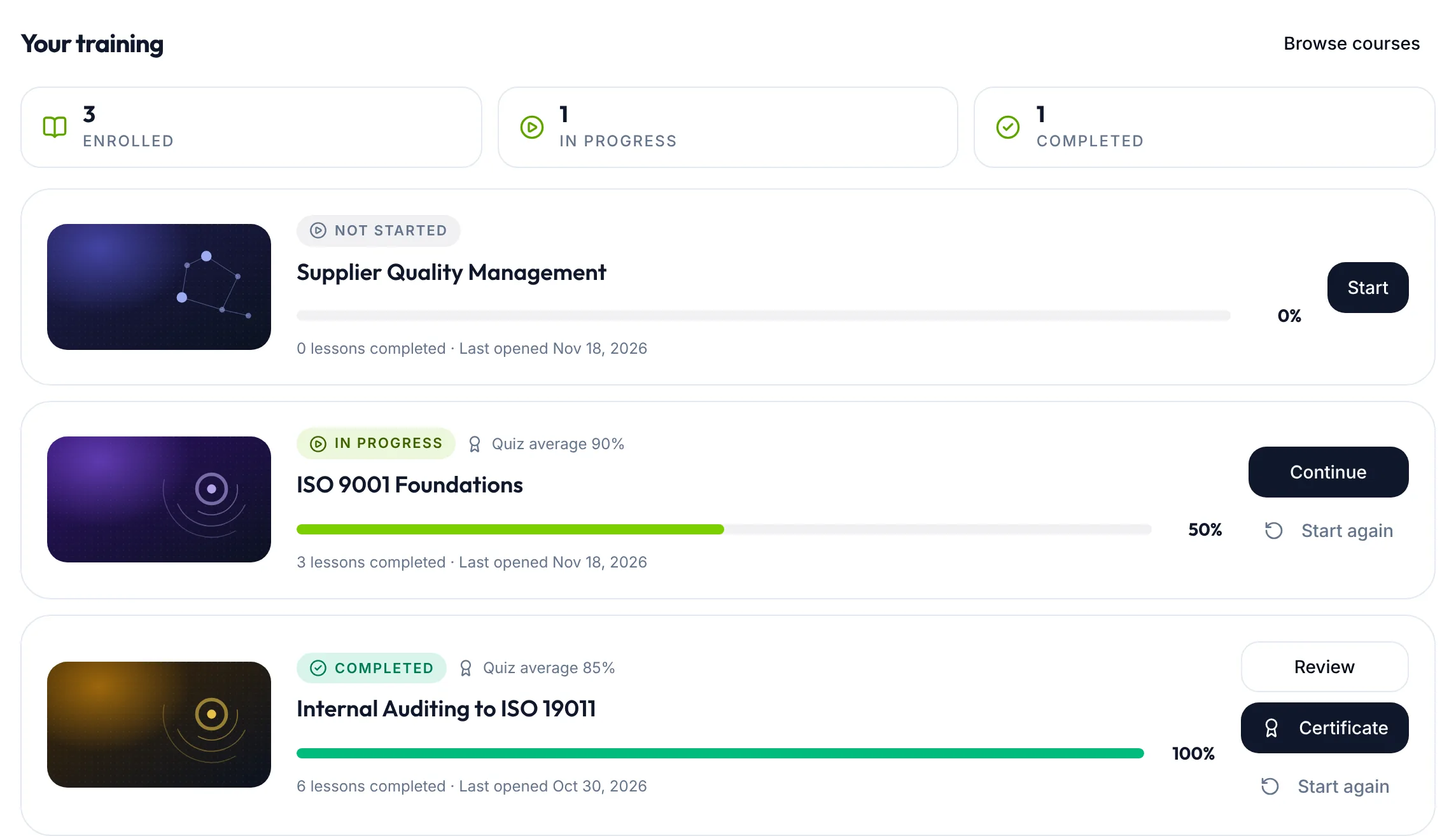
Under Your training you see every course you enrolled in, how many are in progress and how many are completed. Each course shows its status (Not started, In progress or Completed), a bar with the share of lessons you have finished, how many lessons you completed and when you last opened it.
| Button | What it does |
|---|---|
| Start | Opens a course you have not started, at its first lesson. |
| Continue | Opens the course at the lesson you were on when you stopped. |
| Review | Opens a finished course, to read it again. Nothing you have done changes. |
| Certificate | Opens or claims your certificate for a finished course. See Certificates. |
| Start again | Clears your progress in that course. See Start a course again. |
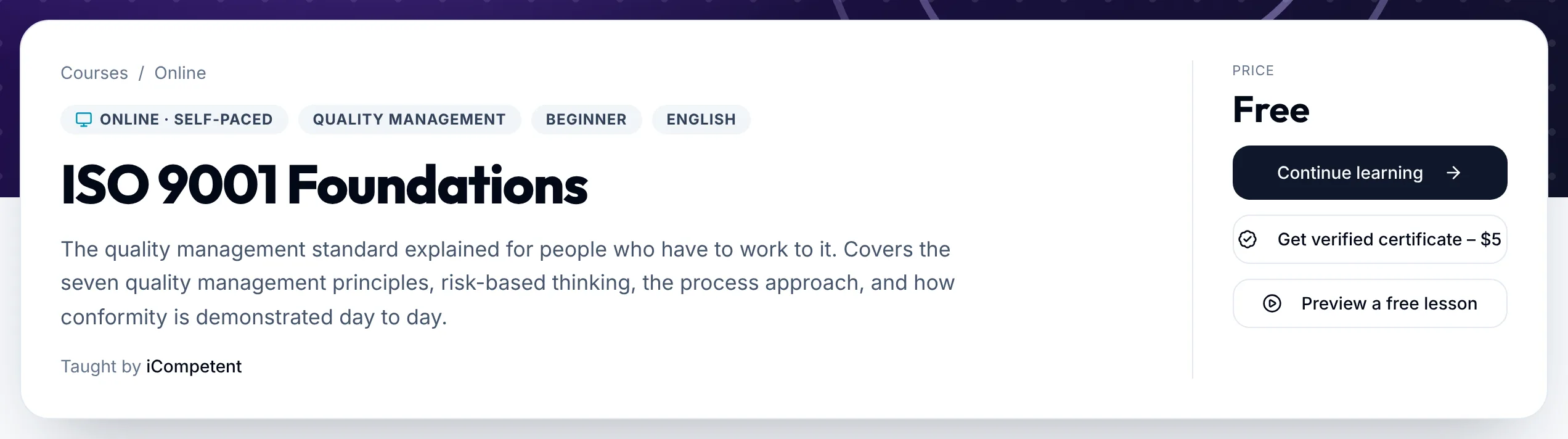
You can also go back through the course page. Signed in and enrolled, its main button reads Continue learning instead of Enrol for free or the price.
Pick up where you stopped
The course opens at the lesson you last had open. In the course contents, a green tick marks every lesson you completed and every quiz you passed, with your score beside the quiz. The lesson you are on is highlighted. A lock marks what is not open yet.
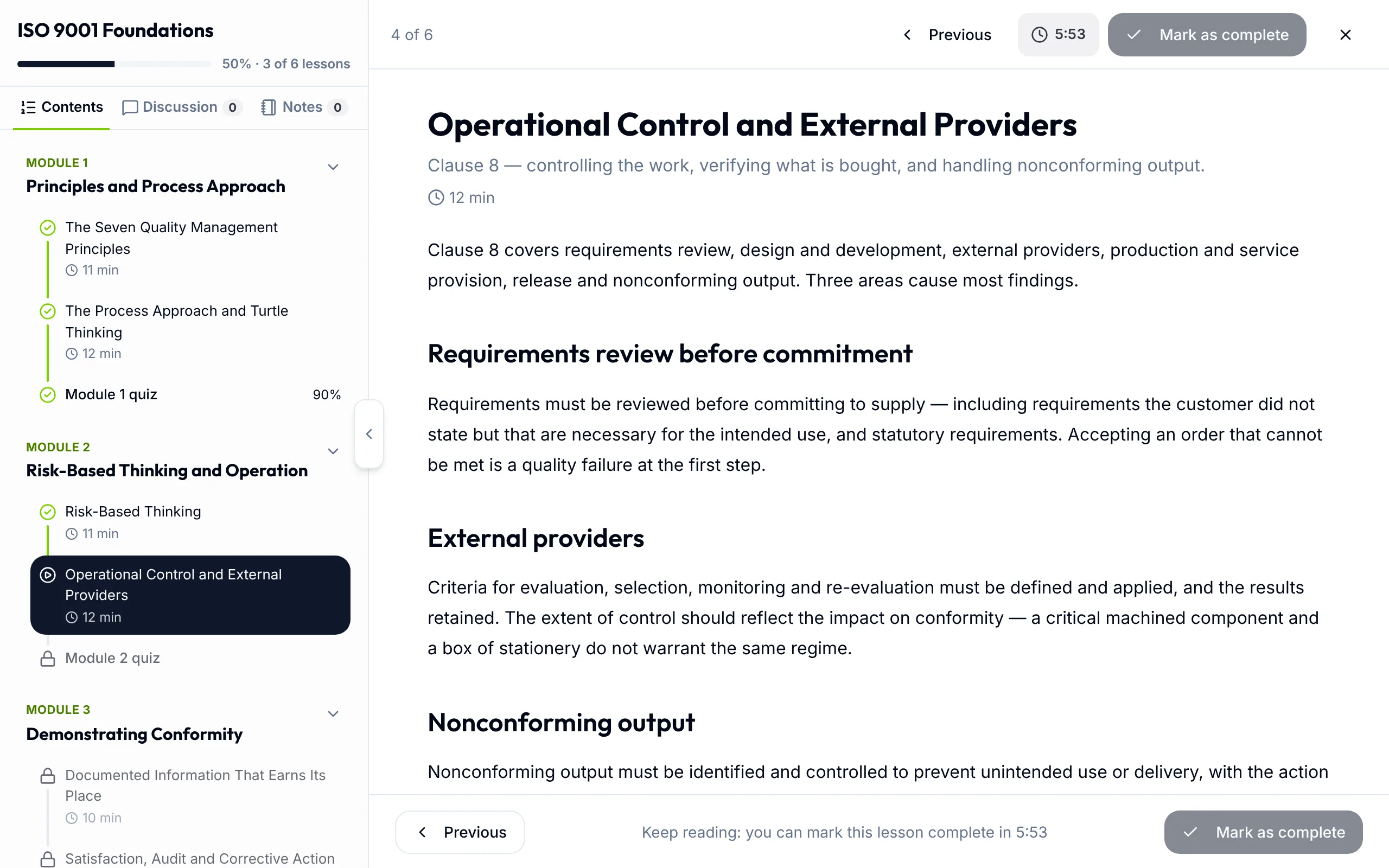
- On a computer, the sidebar runs down the left of the screen: the course, your progress, and three tabs, Contents, Discussion and Notes. The tab on the sidebar's edge hides it and leaves a thin strip with the same three; press the tab again, or one of the three, to bring the sidebar back. The × at the top right leaves the course.
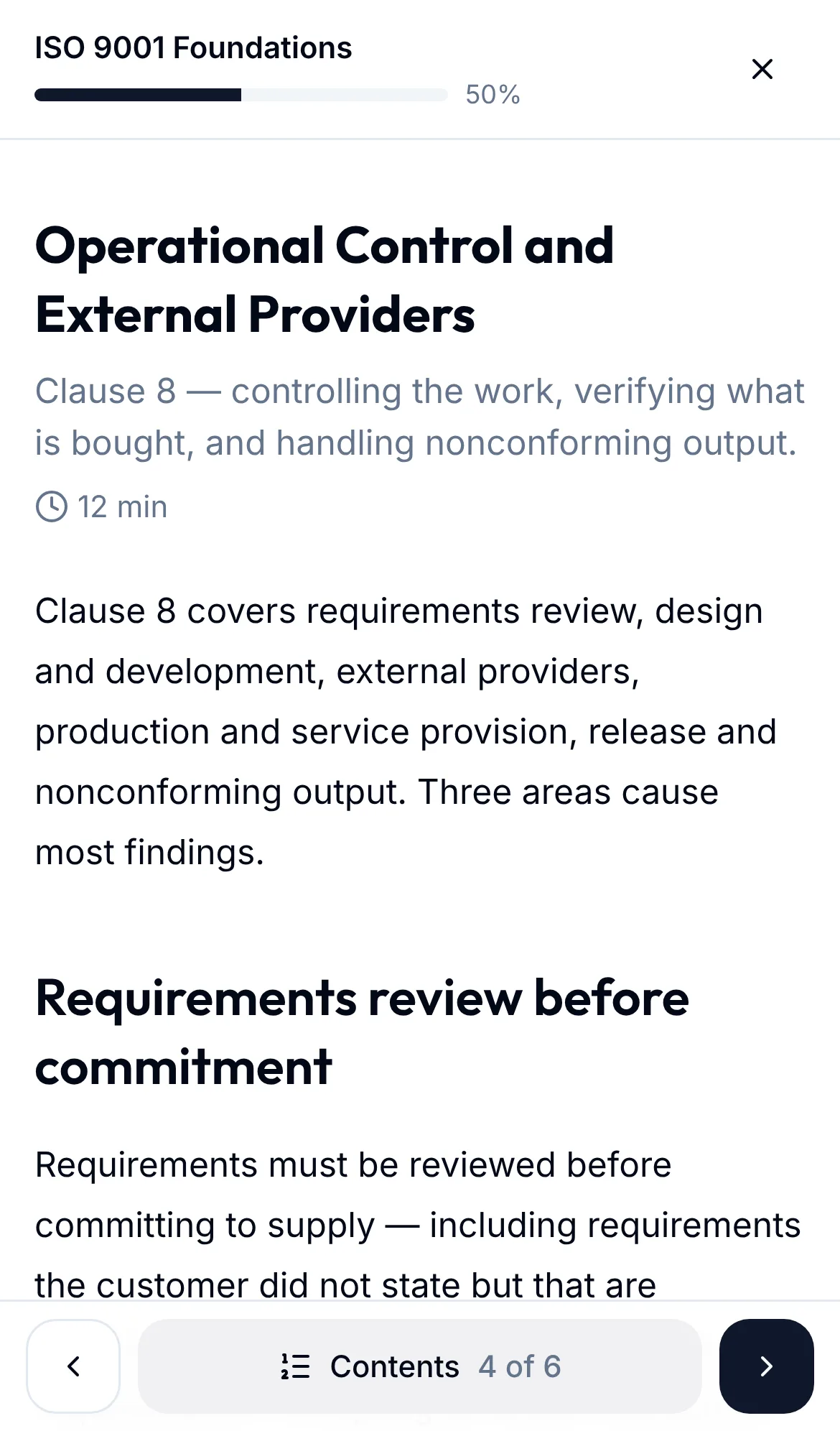
- On a phone, the bar at the bottom of the screen moves to the previous or next lesson, and Contents opens the list from the bottom. It also shows which lesson you are on, such as 4 of 6.
- Lessons open in order, and a module quiz opens once every lesson of its module is complete. Opening a locked lesson or quiz shows what to finish first (Complete the previous lesson first or Finish this module first) with those lessons listed, each with an Open button. A lesson you have already completed always stays open.
- Lessons can contain text, pictures, video and interactive activities such as matching, ordering and flashcards.
Complete a lesson
A lesson counts only when you press Mark as complete at the end of it and the tick appears. Reading a lesson, or doing its activities, without pressing Mark as complete does not save it as done: when you come back, that lesson is still waiting for you.
- Step 1: Read the lesson to the end.
- Step 2: If the lesson has activities, finish them. The player then shows All activities done — mark the lesson complete to continue.
- Step 3: Press Mark as complete. Lesson complete appears, the lesson gets a tick in the course contents, and the next lesson opens.
A lesson counts as complete only after you have had it open for a fair part of its length: about half its stated time, and at least a minute. Until then, the time left counts down at the top of the lesson and in the bar at the bottom (Keep reading: you can mark this lesson complete in 4:45), and Mark as complete stays greyed out. On a phone, the time left shows beside the button at the end of the lesson. This keeps certificates meaningful: they show that someone really worked through the course.

Ask about a lesson
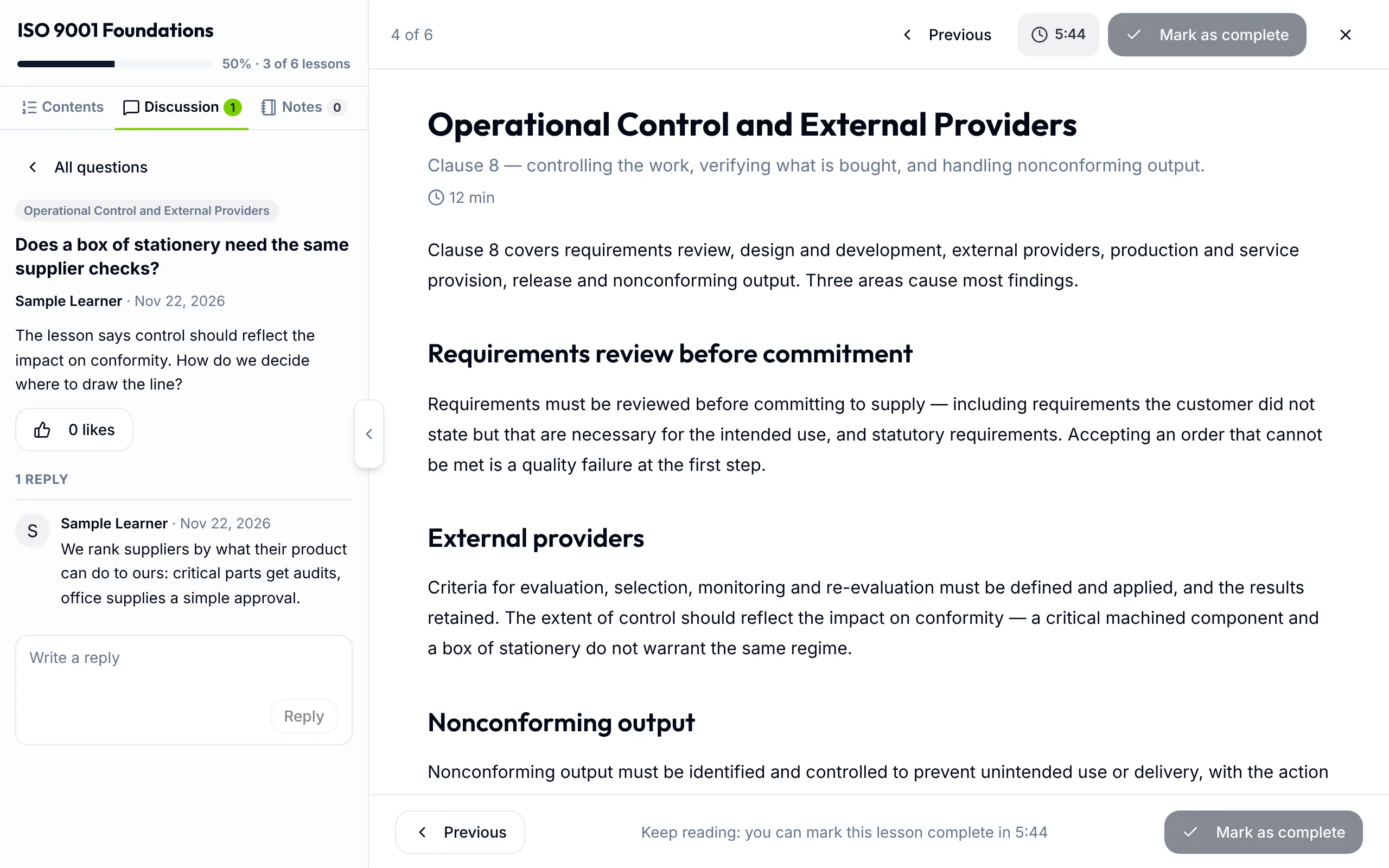
Every online course has its own discussion. On the Discussion tab you see the questions learners asked, with the lesson each one is about, its likes and its replies. This lesson shows the questions about the lesson you are on, Whole course all of them.
- Step 1: Open the lesson your question is about, then the Discussion tab.
- Step 2: Type your question where it says Ask a question about this lesson and press Post. The first line is its title; anything you write below it is shown as its details.
- Step 3: Press a question to read its replies and write your own. All questions takes you back to the list.
- You can also select words in a lesson and press Ask about this: they are copied into a new question.
- Everyone can read the questions, also in the forums under Course discussions. Only learners enrolled in the course can ask, reply and like.
- A course and its versions in other languages share one discussion.
- When someone replies to your question, we email you, at most once a day for each question.
Take notes
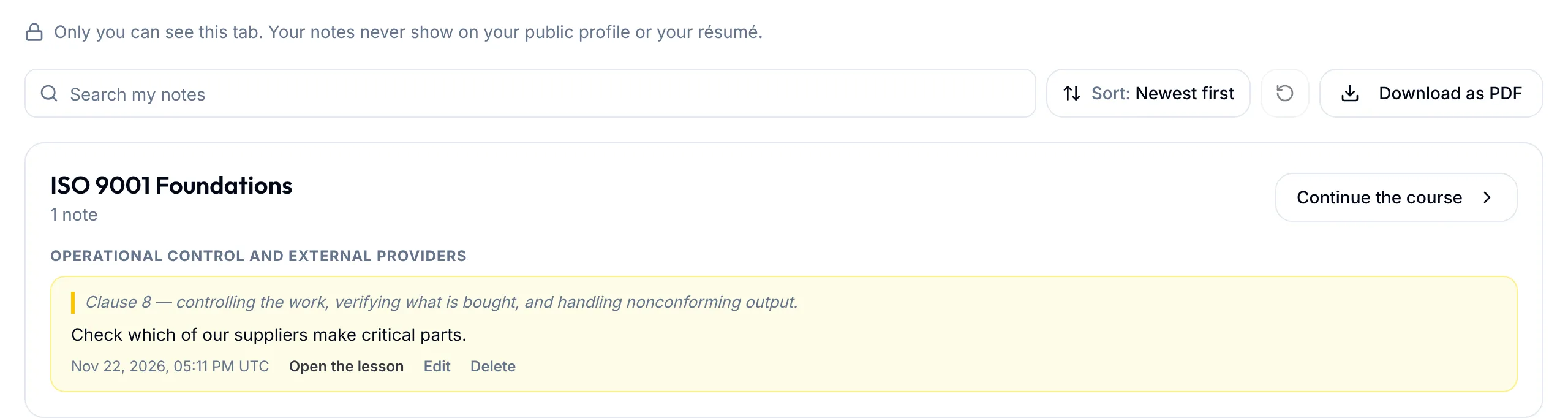
On the Notes tab you write notes about the lesson you are on. Only you can see your notes.
- Step 1: Open the lesson, then the Notes tab.
- Step 2: Write where it says Write a note about this lesson and press Save note.
- Step 3: To keep words from the lesson, select them in the lesson and press Add to notes. They appear as a quote above your note.
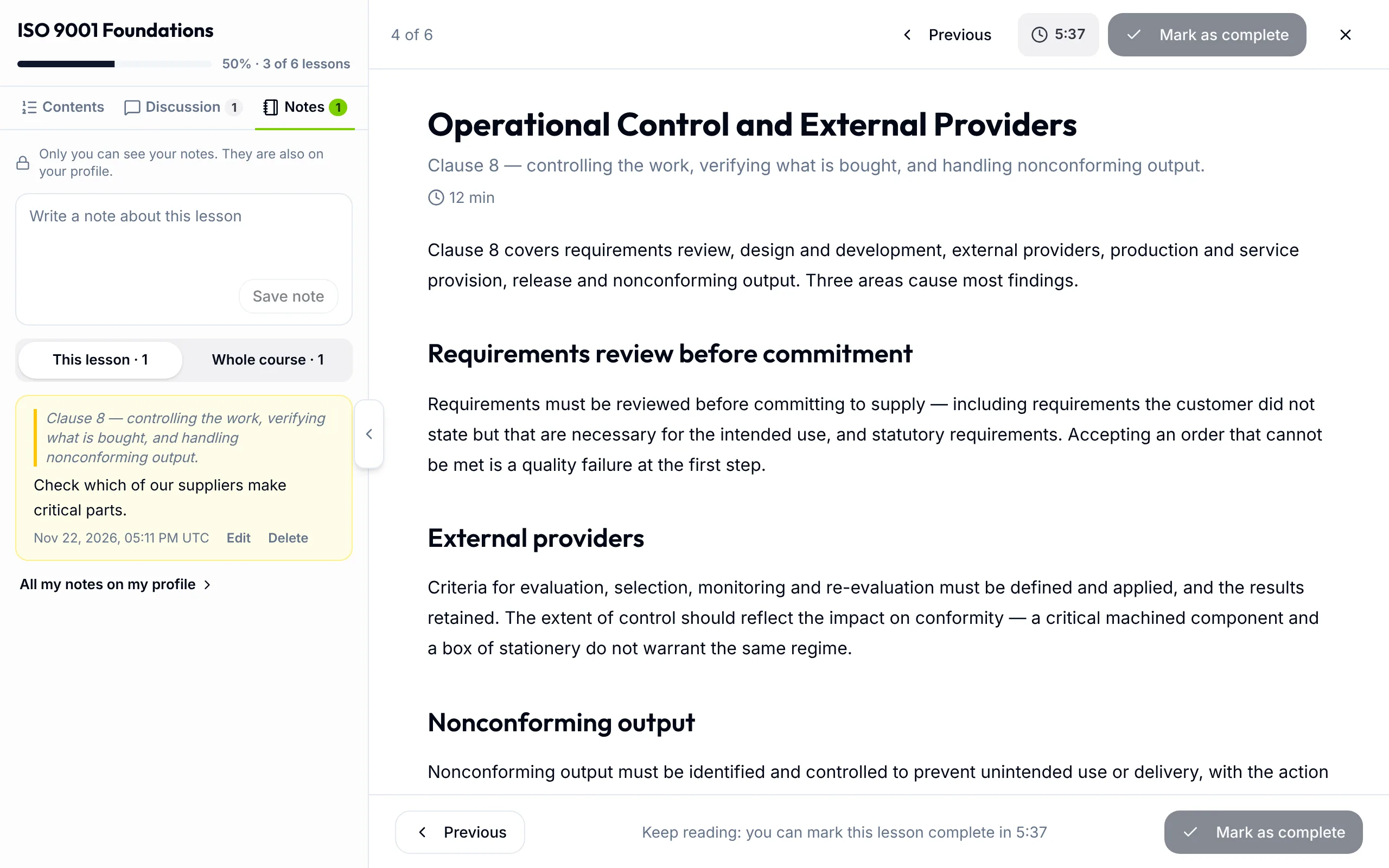
This lesson shows your notes on the lesson you are on, Whole course all your notes on the course. Edit and Delete are under each note.
All your notes, from every course, are on the Notes tab of your profile, by course and lesson, with a search box, Download as PDF, and Open the lesson under each note. Your notes never show on your public profile or your résumé.
Module quizzes
Most modules end with a quiz. The quiz page shows the number of questions and the pass mark, and sometimes a time limit. Press Start Quiz, answer the questions and press Submit Quiz.
- If you pass, the quiz is marked as passed and you can continue. Your score shows beside the quiz in the course contents.
- If you do not pass, you can see which answers were wrong, but not the right answers. Go back over the lessons, then try again.
- You can retake a quiz after a short wait. The page tells you how long.
- Some quizzes can be taken only once. The quiz page says so before you start.
- After you pass, you may retake a quiz to improve your recorded score. Your best score is kept.
Your progress is saved
Your progress is saved to your account, not to your browser, so you can stop at any time and continue on another computer or phone. What is saved:
- every lesson you marked complete;
- every module quiz you passed, with your best score;
- the lesson you were on, so the course opens there next time.
If you see We could not save your progress, the last step was not saved. Check your connection, then press the button again.
If your progress looks lost
If a course opens at the beginning, or your lessons show no ticks, check these in order:
- Step 1: Are you signed in? Signed out, a course page shows Sign in to enrol and lessons open as a preview, with nothing saved. Sign in, then open the course from My learning.
- Step 2: Are you signed in with the account you enrolled with? Open the account menu at the top right and check the email address. If you have two accounts, for example under two different email addresses, each has its own courses and progress. Sign out and sign in with the other one.
- Step 3: Did each lesson get its tick? Only lessons you marked complete are saved. If you saw Keep reading and left, that lesson was not completed. See Complete a lesson.
- Step 4: Did you open the course from My learning or the course page? Use Continue or Continue learning, so the course opens where you stopped.
- Step 5: Did you, or someone using your account, press Start again? That clears the course and cannot be undone.
If none of these explains it, contact us with the name of the course and the email address you signed in with, and we will look at your account.
Start a course again
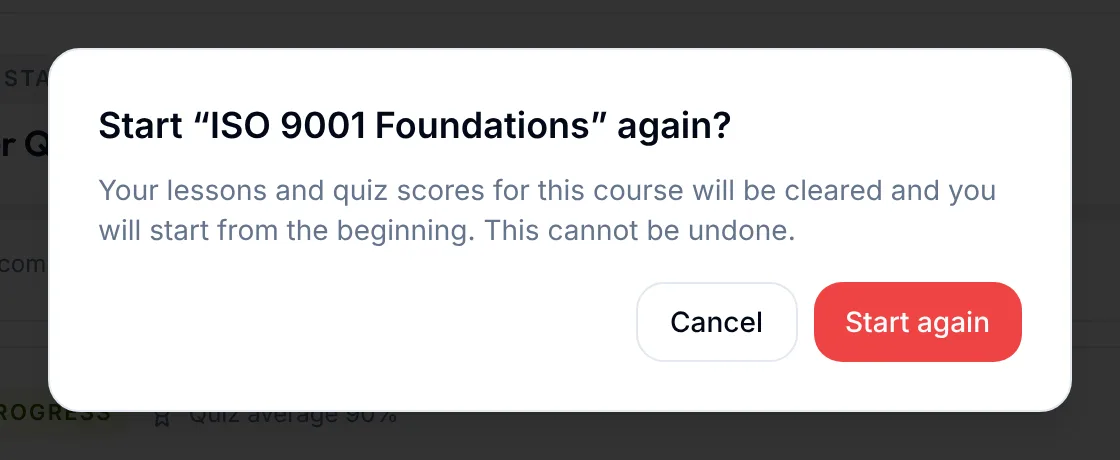
On the Learning tab of your profile (My learning), press Start again next to the course, then press Start again once more to confirm. This clears your lessons and quiz scores, and you start from the beginning. Press Cancel to keep your progress.